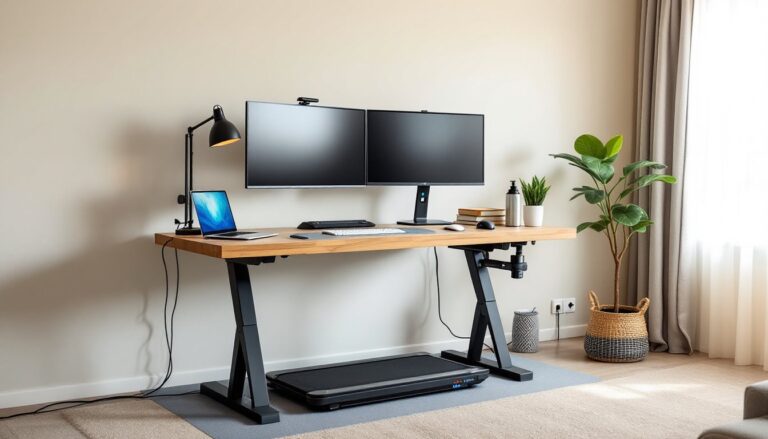
Back pain, stiff necks, and the afternoon slump, these are the hallmarks of sitting for eight-plus hours a day. A standing desk riser offers a practical, affordable alternative to replacing an entire workstation. Unlike full standing desks that run $500–$1,500, risers sit on top of existing surfaces and cost a fraction of the price, typically $100–$400 depending on features and build quality. They’re adjustable platforms that elevate monitors and keyboards to standing height, letting users alternate between sitting and standing throughout the day without sacrificing desk real estate or committing to a full furniture overhaul.
Table of Contents
ToggleKey Takeaways
- A standing desk riser costs $100–$400 and sits on existing desks, offering an affordable alternative to $500–$1,500 full standing desks while reducing back and neck strain from prolonged sitting.
- Standing desk risers feature height-adjustable platforms with manual (pneumatic springs, crank handles) or electric (motorized, programmable presets) mechanisms that raise work surfaces 12–20 inches to accommodate users of varying heights.
- Alternating between sitting and standing for 15–30 minutes per hour boosts energy and circulation while preventing leg fatigue, making regular position switching essential to maximizing riser benefits.
- Proper ergonomic setup—including monitor placement at eye level when standing, 90-degree elbow angles for keyboard positioning, and an anti-fatigue mat—prevents neck strain and premature abandonment of standing routines.
- Electric risers justify their $300–$600 cost premium for frequent adjusters (5+ times daily) through faster 3–5 second transitions and programmable height memory, while manual models ($100–$300) suit occasional position changes.
- Weight capacity, desk depth, and cable management are critical considerations to ensure platform stability, avoid screen glare, and enable smooth height adjustments without equipment damage.
What Is a Standing Desk Riser and How Does It Work?
A standing desk riser is a height-adjustable platform that sits on top of an existing desk, raising the work surface to standing height. Most models feature a two-tier design: an upper platform for monitors and a lower keyboard tray, though single-tier versions exist for minimal setups.
The mechanism varies by model. Manual risers use pneumatic springs, counterbalance systems, or crank handles to adjust height. Users squeeze a release lever or turn a handle to raise or lower the platform, which locks into place at the desired height. Electric models use motorized lifts controlled by buttons or touchpads, offering smoother transitions and programmable height presets.
Typical height adjustment ranges span 12–20 inches, accommodating users from roughly 5’2″ to 6’4″ when properly configured. The platforms themselves range from compact 28-inch-wide units for laptop-only setups to 40+ inch models that support dual monitors and full keyboard/mouse arrangements. Load capacity matters, entry-level risers handle 15–25 pounds, while heavy-duty versions support 35+ pounds for multiple monitors and peripherals.
Top Benefits of Using a Standing Desk Riser
Reduced back and neck strain tops the list. Prolonged sitting compresses spinal discs and tightens hip flexors, contributing to chronic lower back pain. Standing intermittently throughout the day reduces this compression and encourages better posture, though standing all day brings its own issues, more on that in the mistakes section.
Increased energy and focus come from improved circulation. When standing, leg muscles engage to support body weight, promoting blood flow that sitting restricts. Many users report sharper afternoon focus and fewer post-lunch energy crashes, though individual experiences vary.
Cost-effectiveness makes risers accessible. A quality standing desk from Uplift or Fully runs $600–$1,200 before accessories. A comparable riser costs $150–$400, preserving the existing desk and leaving budget for an anti-fatigue mat or monitor arm. For renters or those hesitant to commit to standing full-time, a riser offers a low-risk trial.
Flexibility allows users to switch positions quickly. Unlike full standing desks that require clearing the surface before adjusting, most risers move up and down in 3–5 seconds, making it easy to alternate throughout the day based on task type or energy level.
Types of Standing Desk Risers for Every Workspace
Standing desk risers fall into several categories based on workspace needs and budget.
Desktop converters are the most common. These sit directly on the desk surface and feature a two-tier platform (monitor shelf and keyboard tray). They’re stable, accommodate most monitor sizes, and don’t require any modification to the existing desk. Expect to sacrifice 6–8 inches of depth when the riser is in the lowered position, which matters on shallow desks.
Monitor-only risers elevate screens without a keyboard tray. These work well when paired with a separate adjustable keyboard tray or for users who prefer keeping the keyboard on the desk surface. They’re more compact but require additional accessories for a complete standing setup.
Mobile risers include wheeled bases or clamp-on designs that attach to desk edges. These suit shared workspaces or users who need to move the setup between rooms, though stability can suffer compared to fixed platforms.
DIY options appeal to budget-conscious builders. Simple designs using plywood, lumber, and adjustable shelf brackets can be built for $30–$60 in materials. Standing desk converter ideas show how repurposed crates and shelving create functional risers, though they typically lack the smooth height adjustment of commercial units. For more comprehensive DIY furniture plans, builders can find step-by-step guides for custom-sized platforms.
Manual vs. Electric Desk Risers
Manual risers dominate the under-$250 market. Pneumatic spring systems (like those in office chairs) provide smooth, quiet operation but require both hands to adjust, one to hold the release lever, one to guide the platform. Counterbalance designs use weights to offset the platform’s mass, making height changes nearly effortless for lighter loads. Crank-operated models offer precise height control but take 15–20 seconds to adjust, discouraging frequent position changes.
Pros: Lower cost ($100–$300), no power cord to manage, zero electricity use, fewer mechanical failure points.
Cons: Slower adjustments, less precise height settings, some models wobble when typing.
Electric risers use linear actuators (motorized lifts) to raise and lower the platform. They feature programmable height presets (typically 2–4 saved positions), one-touch operation, and smoother travel. Most draw power through standard AC adapters and include collision-detection sensors to prevent damage.
Pros: Fast, effortless adjustments (3–5 seconds), precise height memory, stable under load, easier for users with limited hand strength.
Cons: Higher cost ($300–$600), requires accessible outlet, potential motor failure after 2–3 years of heavy use, heavier units (40–50 lbs vs. 25–35 lbs for manual).
For users who plan to adjust height 5+ times daily, electric models justify the premium. Those who shift once or twice per day can save money with a quality manual riser.
How to Choose the Right Standing Desk Riser for Your Needs
Start with desktop dimensions. Measure the desk’s width and depth, then subtract the riser’s footprint to ensure adequate remaining workspace. A riser that’s 28–32 inches wide suits single-monitor setups, while dual-monitor users need 36–40+ inches. Depth matters more than most realize, a riser adds 10–16 inches of depth when deployed, which can overhang smaller desks.
Weight capacity determines longevity. Add up monitor weight(s), keyboard, mouse, laptop, and any accessories. Two 24-inch monitors average 10–12 pounds, a mechanical keyboard runs 2–3 pounds, and a laptop adds 3–5 pounds. Build in 20% overhead to avoid stressing the mechanism. A 20-pound total setup needs a riser rated for at least 24 pounds.
Height range and ergonomics require careful measurement. Standing elbow height (measured from the floor to the underside of the bent elbow) should match keyboard height. For most people, this falls between 38–46 inches from the floor. If the existing desk sits at 29–30 inches (standard height), the riser needs 9–17 inches of lift. Measure before buying, many budget risers max out at 12 inches, leaving taller users hunched.
Desk depth and monitor positioning affect eye strain. Monitors should sit 20–30 inches from the eyes at a height where the top of the screen aligns with or slightly below eye level. Deep risers (16+ inches) push monitors farther away, which helps on shallow desks but may require larger screens for comfortable viewing.
Build quality separates frustration from satisfaction. Steel frames outlast plastic components, especially at joints and pivot points. Wobble during typing indicates insufficient bracing, test this before committing if possible. Keyboard trays should include wrist support or enough depth (14+ inches) to accommodate ergonomic accessories.
Setting Up Your Standing Desk Riser: A Step-by-Step Guide
Proper setup prevents the ergonomic issues a riser should solve. Rushing this step leads to neck pain and abandoned standing routines.
1. Clear the desk surface. Remove everything from the area where the riser will sit. Wipe down the surface, dust and debris reduce friction and cause slipping over time.
2. Position the riser. Center it front-to-back on the desk, leaving equal overhang if necessary. Most risers perform best when the keyboard tray doesn’t extend past the desk’s front edge when lowered. For woodworking project plans involving custom desk builds, ensure the desktop can support concentrated loads of 50+ pounds in the riser’s footprint.
3. Adjust the monitor height (sitting position first). With the riser lowered, place monitors on the upper platform. Sitting in the chair, the top third of the screen should be at or slightly below eye level. Adjust monitor tilt to eliminate glare and neck strain.
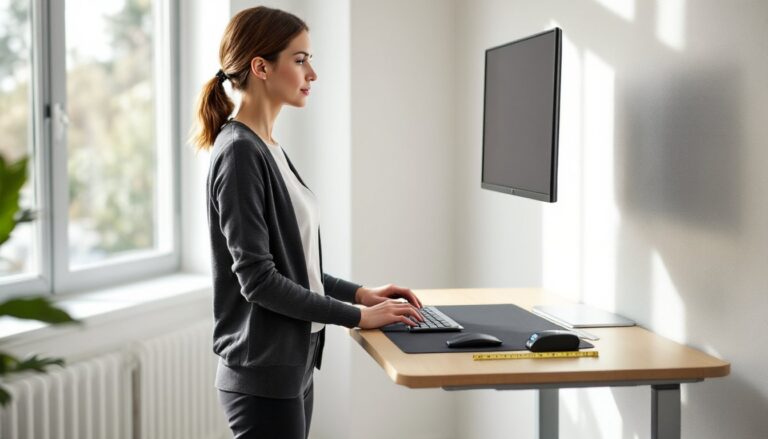
4. Set keyboard and mouse placement. The keyboard should allow 90-degree elbow angles when typing, with wrists straight (not angled up or down). If the keyboard tray slopes, use a wrist rest to maintain neutral wrist posture. The mouse should sit at the same height, within easy reach without shoulder extension.
5. Test the standing position. Raise the riser to full height and stand. Elbows should bend at 90–100 degrees with hands resting on the keyboard. Monitor height matters more when standing, the center of the screen should align with eye level, not the top. Most users need to raise monitors an additional 2–4 inches for proper standing posture compared to sitting.
6. Mark or save preferred heights. For electric models, program memory settings for sitting and standing positions. For manual risers, use a piece of tape or permanent marker to note ideal heights on the riser’s frame for quick reference.
7. Add an anti-fatigue mat. Standing on hard flooring (concrete, tile, hardwood) fatigues legs and feet within 30–60 minutes. A ¾-inch-thick mat with beveled edges reduces strain and encourages subtle movement. Place it where standing occurs most frequently.
Common Mistakes to Avoid When Using a Desk Riser
Standing for too long defeats the purpose. The goal isn’t replacing sitting with standing, it’s alternating between both. Research suggests 15–30 minutes of standing per hour reduces fatigue without causing the leg and foot pain that comes from standing all day. Set a timer or use software reminders to switch positions.
Improper monitor height causes neck strain. When standing, many users forget to raise monitors higher than their sitting configuration. The result: looking down at screens, which negates postural benefits. Center of the screen at eye level when standing is the target.
Ignoring footwear and flooring leads to early fatigue. Standing in dress shoes or on concrete without a mat accelerates discomfort. Supportive shoes with cushioned insoles and an anti-fatigue mat extend standing duration significantly.
Overloading the platform stresses adjustment mechanisms and causes premature failure. Check the manufacturer’s weight rating and stay below it. Adding a printer, stacks of books, or multiple large monitors beyond capacity leads to sagging platforms and stripped gears in electric models.
Skipping cable management creates hazards and limits adjustability. Loose cables snag on the riser’s frame during height changes or pull monitors off the platform. Use cable clips, sleeves, or under-desk trays to route cords with enough slack for full range of motion. For electric risers, the power cord needs a clear path that doesn’t interfere with the desk’s existing equipment.
Poor workspace lighting compounds eye strain when standing. Overhead lights often create glare on monitors when users shift position. Adjust blinds, reposition monitors away from windows, or add a desk lamp to reduce screen glare and eye fatigue during standing sessions.